Animation and Faceboard
Use Animation, below Sculpt, to check facial movement after editing.
Faceboard
First-time setup: download and select Epic's Faceboard layout. The layout is not bundled with REVO DNA.
- Click Build Faceboard.
- Click Edit Board.
- Move the yellow controls in Pose Mode.
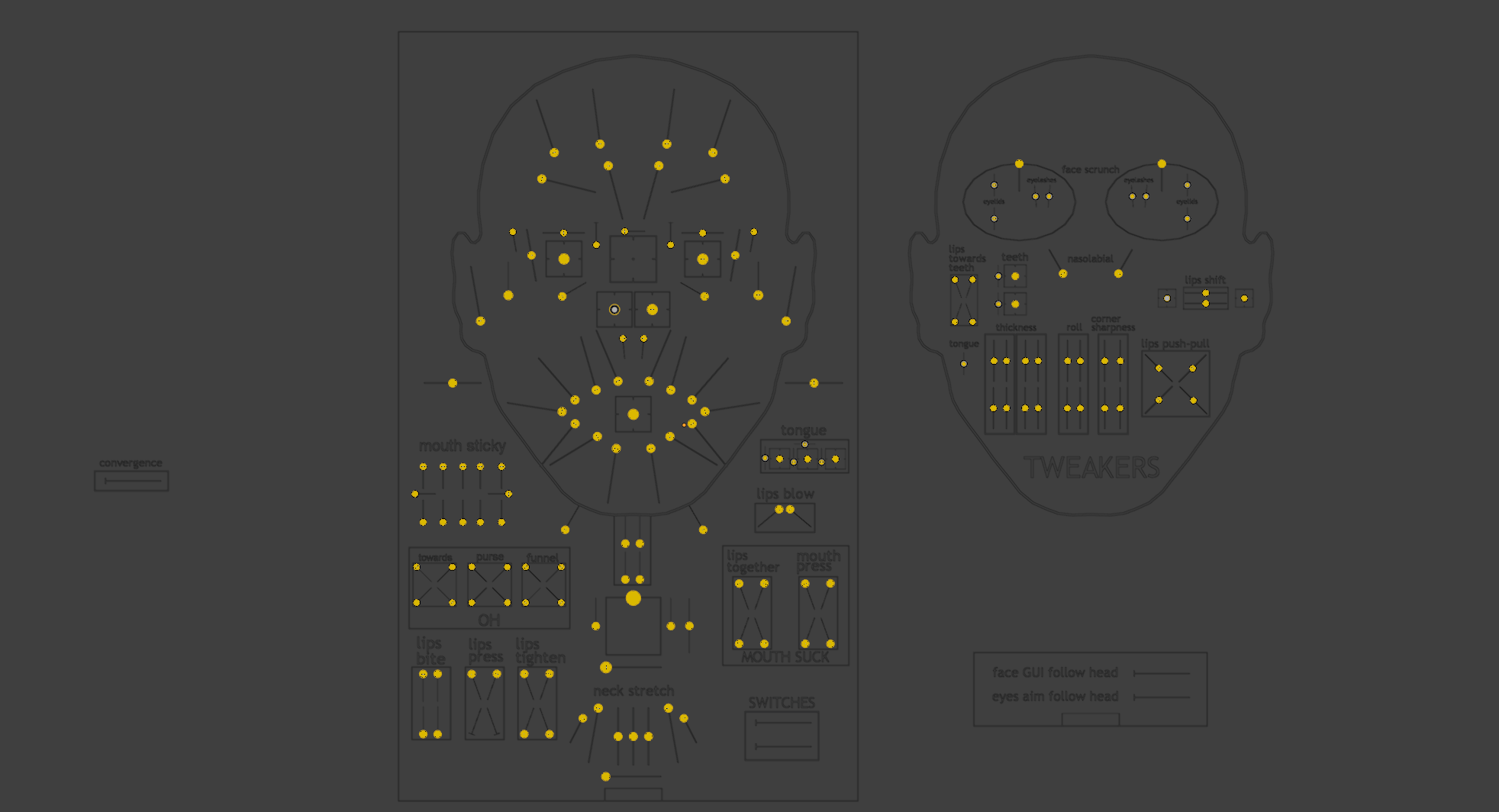
Faceboard controls
Edit Board starts rig preview automatically. If the face does not move, check the Character field and click Edit Board again. Undo or loading a file can stop preview.
The layout requires Epic MetaHuman for Maya's local faceboard.json. Select it in Faceboard Layout if it is not found automatically.
Preview Face Board is the manual preview switch under Advanced; you normally do not need it. Use Neutral to reset controls.
Optional control test
Build Control ROM creates a control animation to test facial movement. It is optional and does not download or create Epic's ROM FBX.
Load a clip
Use Load Clip to load a compatible animation FBX, or select one from ROM Folder. See where to get ROM files.
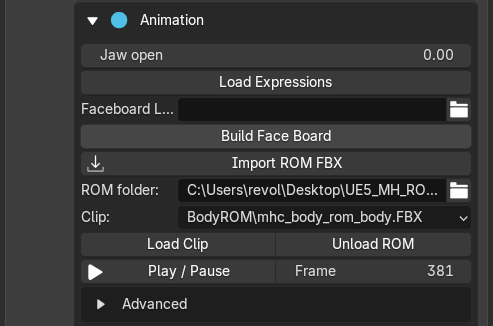
Load, play and unload animation clips
Unload ROM removes the loaded clip and restores the state from before loading it. Skeletal clips may not include all facial correctives; also check the Faceboard.
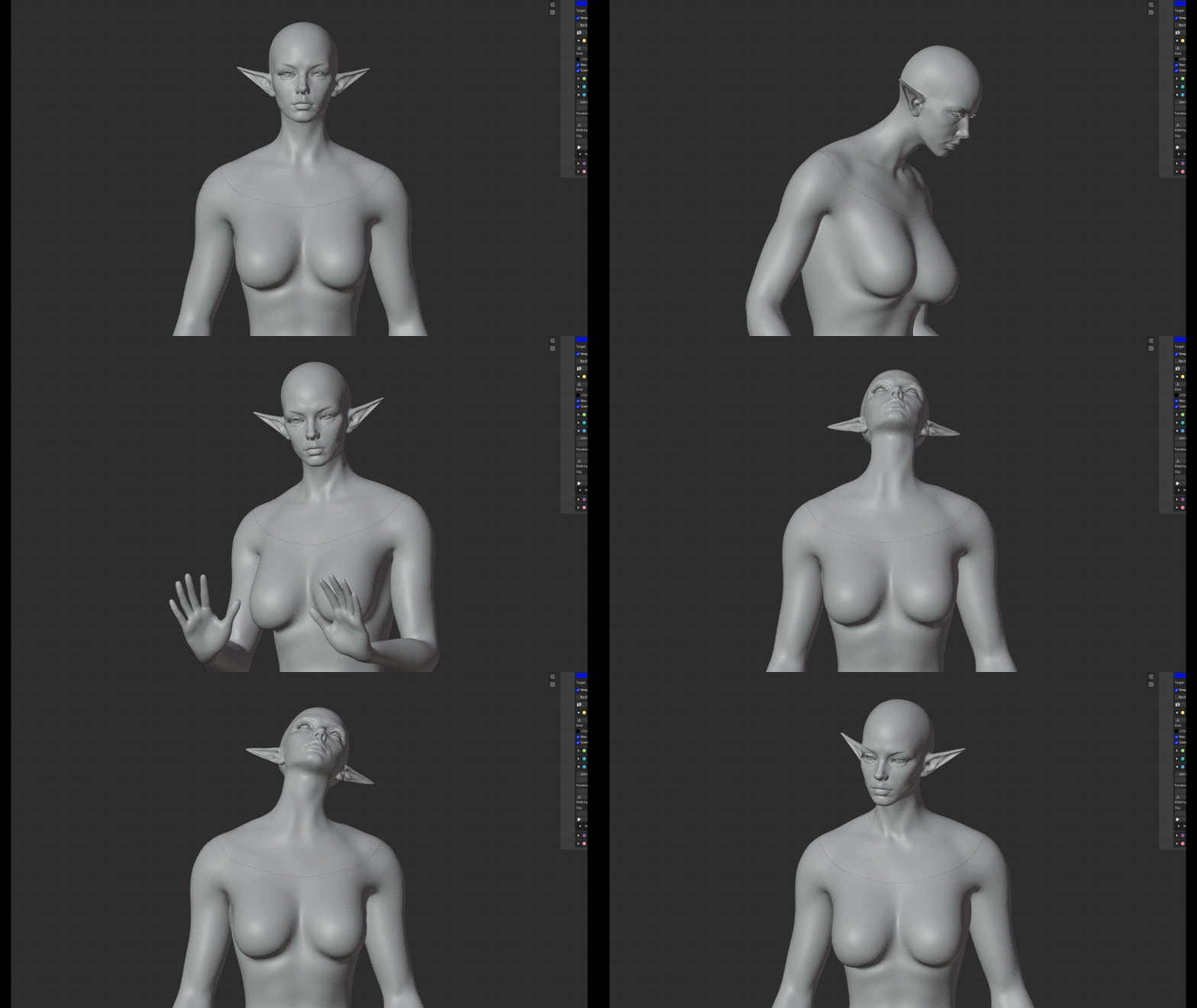
Check facial movement after editing
A loaded clip is not included in DNA export, and the current animation frame is not exported as the neutral face. Still inspect neutral before baking and exporting.