Markers
Use Conform for heads or bodies with different topology. Already using compatible MetaHuman UVs? Use Conform by UVs directly—markers are optional.
Set up
- Set Source to the mesh whose topology you want to keep.
- Set Target to the scan or sculpt whose shape you want.
- Use Side by Side to view both. Enable Sync Views to rotate them together.
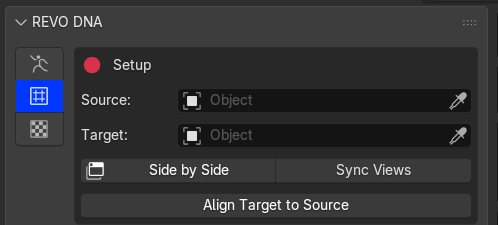
Set Source and Target

Rotate both views together with Sync Views
If the Target needs repair, use Scan Preparation > Repair Scan Copy before placing markers, then select the repaired copy as Target.

Inspect or repair the Target before placing markers
Place and move markers
Click Add Markers. Place matching landmarks on Source and Target in the same order: eye corners, lips, nose and ears.
To move a marker, grab and drag it while Add Markers is active. You do not need to delete and replace it.
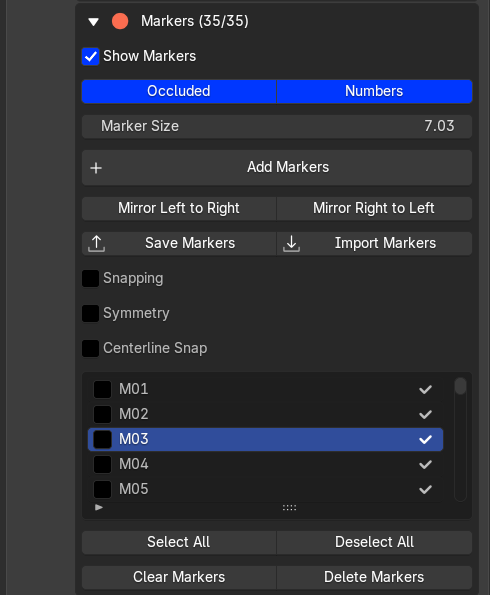
Marker placement, visibility and selection controls
| Control | What it does |
|---|---|
| Show Markers | Hide or show all marker dots and numbers without deleting them. |
| Occluded | Show markers through the mesh. |
| Numbers / Marker Size | Adjust labels and dot size. |
| Snapping | Snap to vertices. Leave off for free placement on the surface. |
| Centerline Snap | Pull markers near the mesh's local centre onto it. Distance controls the range. It does not mirror markers. |
| Symmetry | Add linked opposite-side markers; moving one updates its partner. |
Symmetry uses each mesh's local X centre, so centre the meshes first. Existing independent markers are not paired automatically.

Place matching markers with Symmetry
Mirror Left to Right / Right to Left copies checked markers across the mesh. With none checked, it uses all markers.
Save or clear
Save Markers stores a file; Import Markers replaces the current set. Reuse it with meshes whose topology has not changed.
Delete Markers removes checked markers. Clear Markers removes all. Use Select All / Deselect All to change the selection.
Next: Protect and conform.