Installation and Update
Supported Blender versions: 4.2 to 5.1. Recommended: Blender 4.2+.
Installation
Drag-and-Drop (Blender 4.2+)
Blender 4.2+ supports direct drag-and-drop installation for extension packages.
- Open Blender.
- Drag
RevoOpacityCutout.zipinto the Blender window. - Confirm the install prompt.
- Enable REVO Opacity Cutout in Preferences -> Add-ons.
- Restart Blender.
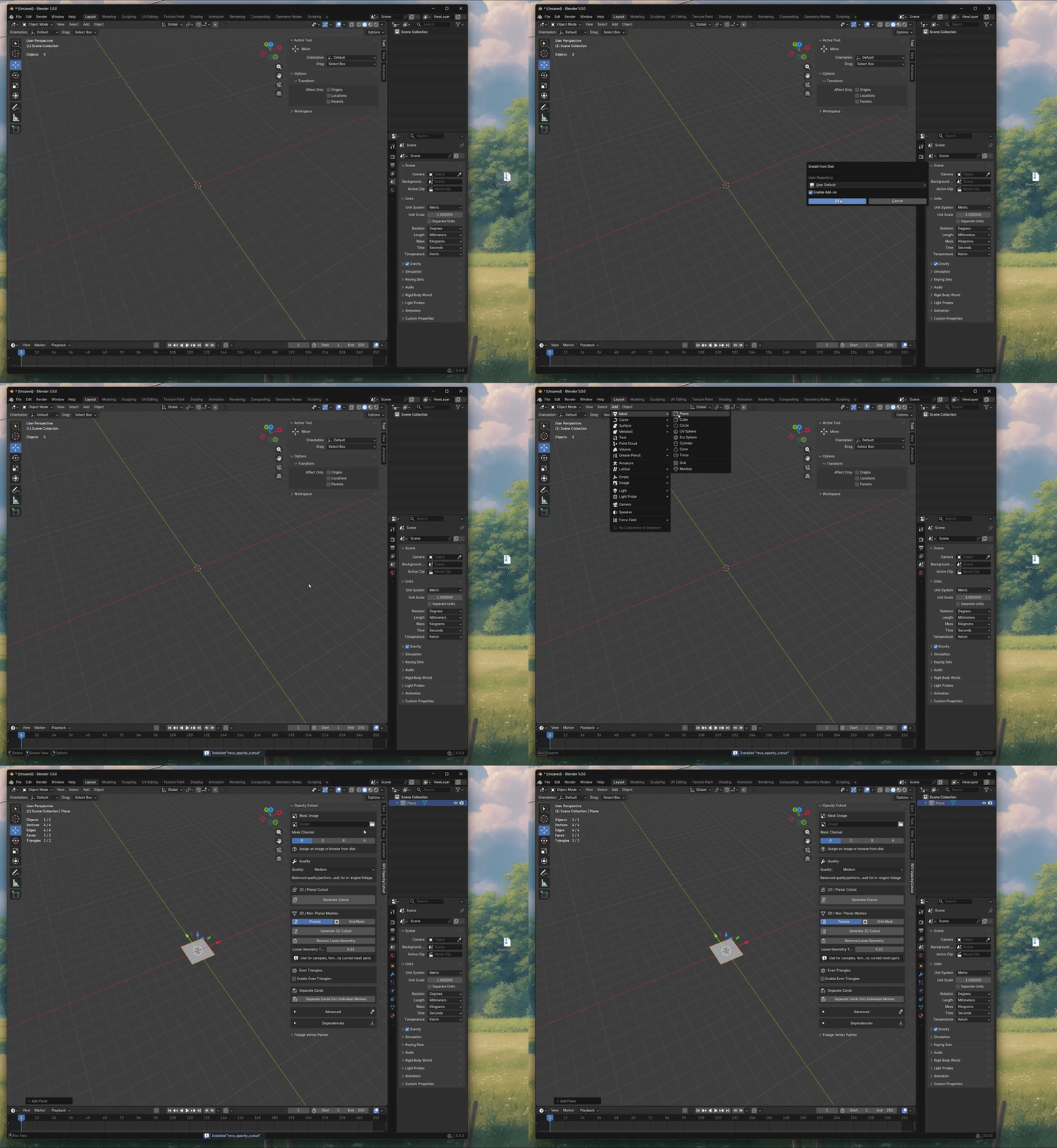
After Installation
Open the N-Panel (press N) and go to the REV OpacityCutout tab. If on first use dependencies are missing, click Install Dependencies in the panel to install OpenCV and PyClipper, afterwards restart blender.
Update
- Disable the previous version in Blender add-ons.
- Install the updated plugin package.
- Re-enable the add-on.
- Restart Blender if required.
Verify installation
- Confirm the
REV OpacityCutouttab appears in the 3D View N-Panel. - Confirm
Install Dependenciescompletes without errors. -
Confirm you can run a first test with
2D / Planar Cutouton a simple masked plane. -
Open N-Panel -> REV OpacityCutout.
- Add or select a simple plane with UVs.
- Assign a material with an opacity mask texture (or pick a mask with the browse button).
- Select a quality preset (quick test low or medium)
- Click
Generate Cutoutin2D / Planar Cutout. - Verify generated geometry follows the opacity silhouette.
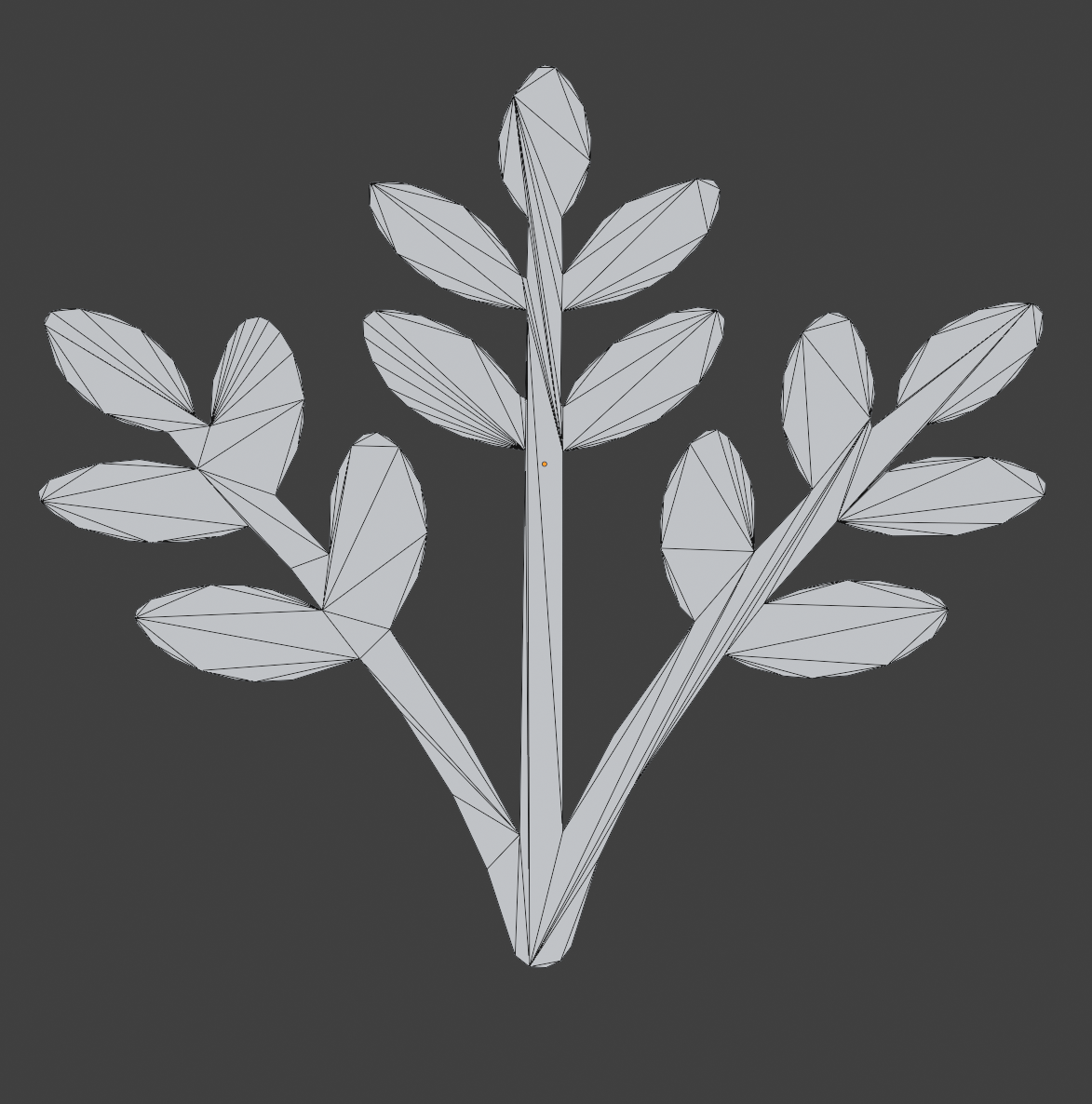
You can use the provided sample opacity texture below as a test mask. Right-click the image, save it, and load it in your material or use the browse button to quickly verify the workflow.

Expected result if properly installed + the dependencies